SQL Editor
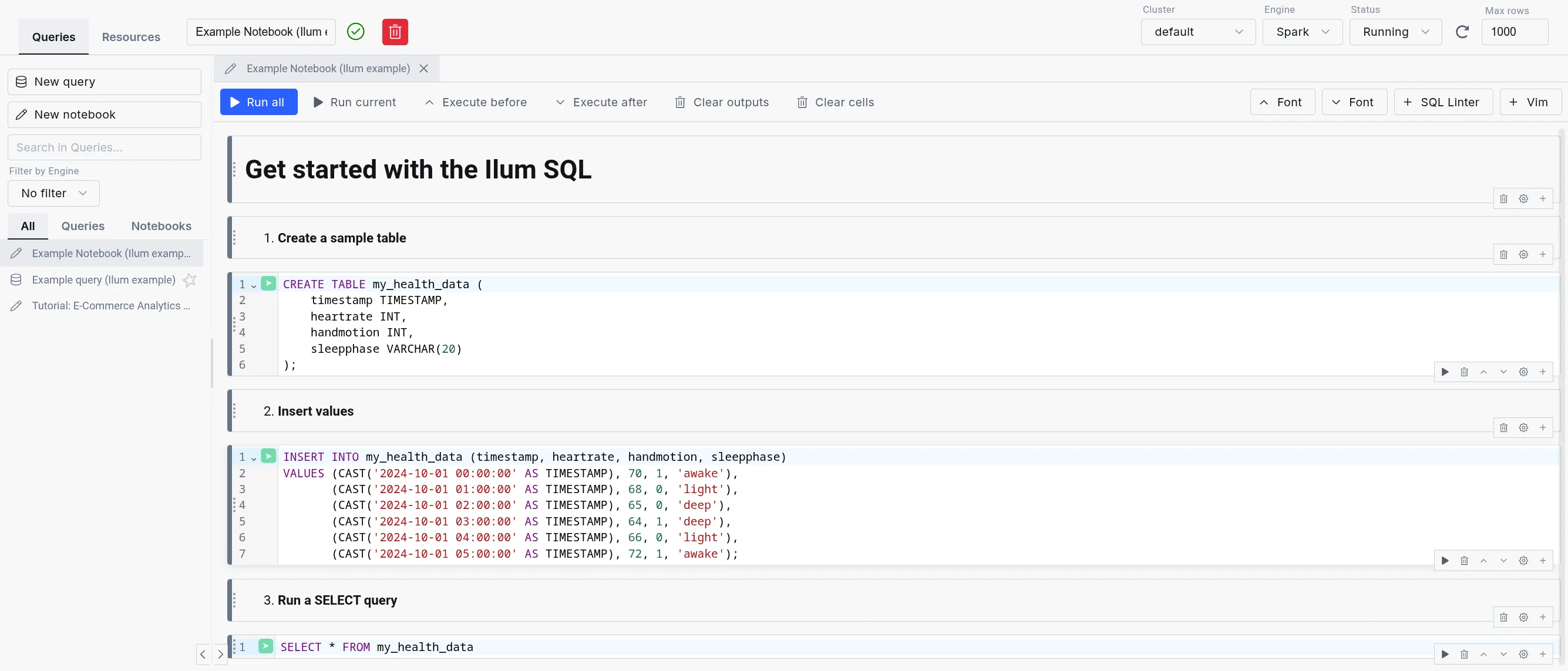
The Ilum SQL Editor (formerly SQL Editor) is the in-product workbench for running SQL across every engine Ilum supports: Apache Spark, Trino, DuckDBe Apache Flink. Queries execute through the Apache Kyuubi SQL gateway, with DuckDB integrated as an in-process engine for the lowest possible latency.
Designed for simplicity, the SQL Editor offers an intuitive interface for running queries, exploring data, and gaining insights quickly without writing Scala or Python code.
It is highly configurable through the UI or Helm deployment values, allowing flexibility in, for example, choosing a different table format, like Delta Lake, Apache Hudi, or Apache Iceberg, and in routing queries between engines.
Multi-engine workbench
The SQL Editor exposes the full multi-engine surface of Ilum:
- Engine Selector: Dropdown in the editor toolbar for choosing Spark, Trino, DuckDB, or Flink (when enabled). Live status indicators show the health of each engine.
- Engine lifecycle controls: Start, stop, and restart engines from the UI without leaving the editor. Useful for cycling a Trino coordinator or releasing a Spark session.
- Dialect transpilation: Translate queries between Spark SQL, Trino SQL, DuckDB SQL, and Flink SQL using the built-in transpiler. Useful when promoting an exploratory DuckDB query to a Spark batch job.
- Automatic engine routing: When enabled, the engine router selects the best engine for each query based on data size, workload type, and locality. User selection always overrides the router.
- In-app SQL notebooks: Persistent multi-cell notebooks with per-cell execution, profiling, and visualization, alongside single-query mode.
- Saved queries: Folder-organized query library with bulk operations and a move dialog for reorganization.
- Results tabs: Data, Logs, Statistics, Plan, Export, Visualization. Column-level profiling shows histograms, null counts, and cardinality.
For details on each engine, refer to the Execution Engines documentation.
In che modo ti aiuterà?
The SQL Editor is a powerful tool for reporting and debugging during application development. Instead of building an entire Spark SQL program to query your tables, you can submit SQL statements directly within Ilum's interface.
For debugging, the SQL Editor is invaluable. It eliminates the need to repeatedly write, compile, and submit code like:
val Dataset = scintilla.SQL("select ...")
Al contrario, è possibile testare in modo interattivo le istruzioni SQL senza ricreare ogni volta le sessioni.
Beyond query results, the SQL Editor offers data exploration and visualization tools, along with logs and execution statistics, giving you deeper insights into the query process.
The SQL Editor is also integrated with all four Ilum data catalogs (Hive Metastore, Project Nessie, Unity Catalog, and DuckLake), which means that you can seamlessly query data from previously created tables.
Get started with the SQL Editor
To use the SQL Editor, you need to deploy Ilum with the SQL feature enabled. For setup instructions, refer to the Pagina di produzione.
Once set up, the SQL Editor should be available on the sidebar. Inside, Apache Spark and DuckDB are available as engines by default; Trino and Flink can be enabled per deployment.
Ilum loads in example queries and notebooks to help new users get started quickly.
Example query and notebook loading è abilitato by default.
However, you can disable it by setting ilum-core.examples.sqlQuery=false (disables loading queries) and
ilum-core.examples.sqlNotebook=false (disables loading notebooks) in the Helm chart values.
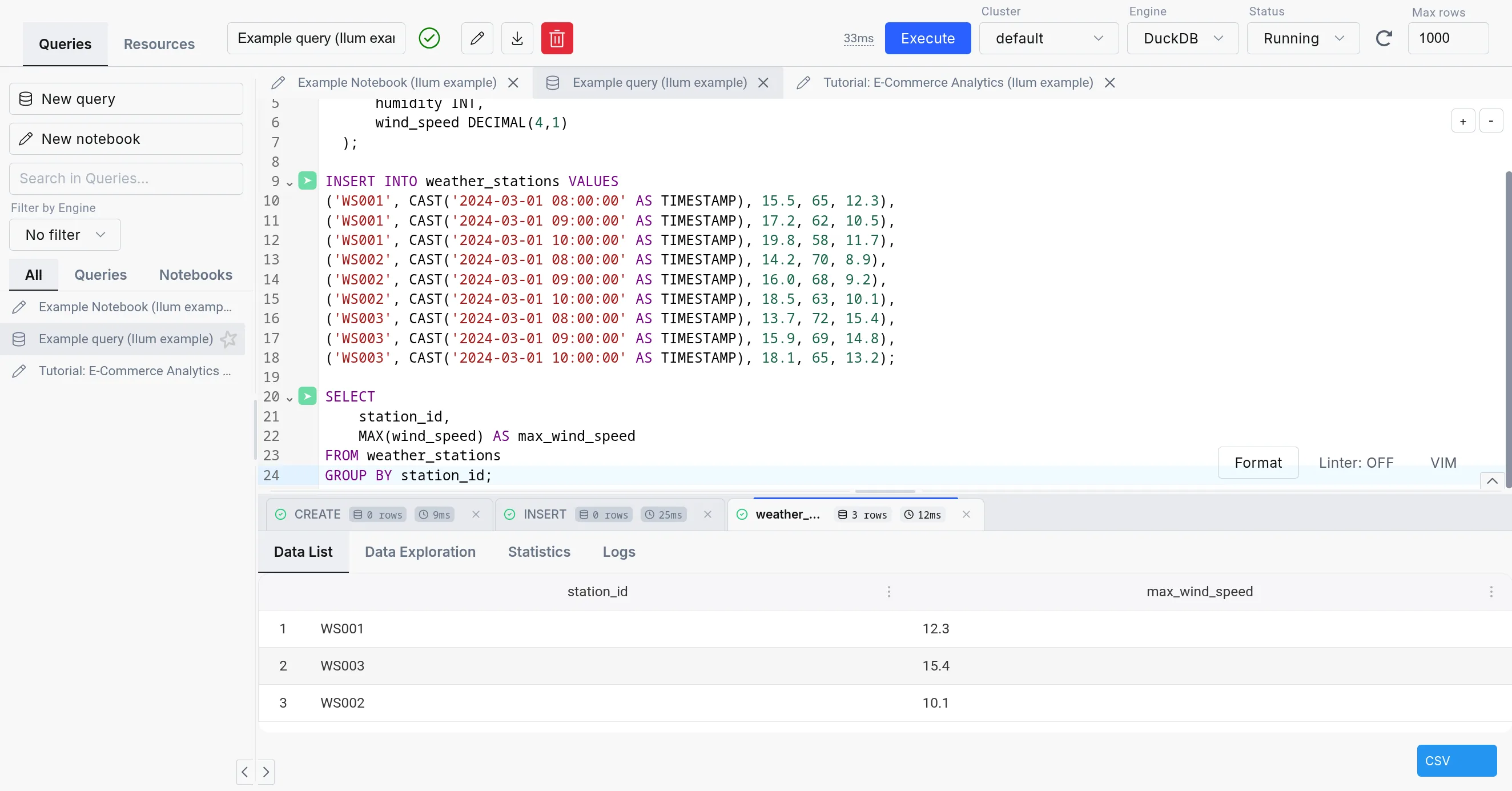
The SQL Editor consists of three parts:
-
SQL query editor: The center part of the SQL Editor, which allows you to write and execute SQL queries. It comes with a simple text editor in the query mode and a notebook-like interface in the notebook mode.
-
The sidebar: Contains your different SQL queries and notebooks in the "Queries" tab, the engine list and lifecycle controls in the "Engines" tab, and a mini version of the Esplora tabelle in the "Resources" tab.
-
The output: Appears in the bottom part of the screen when you execute a query. It has tabs for Data, Logs, Statistics, Plan, Export, and Visualization, plus column-level profiling.
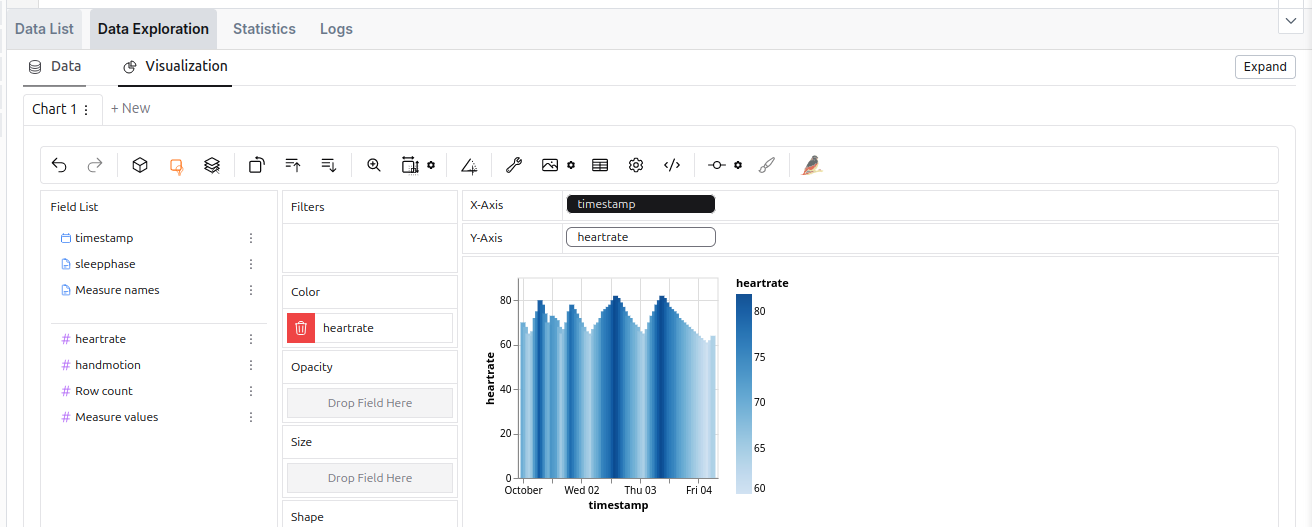 The data exploration tool in the SQL Editor.
Motori alternativi
The SQL Editor supports four engines: Apache Spark, Trino, DuckDBe Apache Flink. For an in-depth comparison, refer to the Execution Engines overview.
| Spark SQL | Trino | DuckDB | |
|---|---|---|---|
| Spiegamento | On cluster and dynamic | On cluster | Embedded |
| Caso d'uso | ETL, Big data processing | Interactive analytics | Interactive analytics, medium-data ETL, prototyping |
| Storage Support | Comprehensive (with additional JARs) | Sufficient | Lacking (but quickly expanding) |
| Concurrency | High (with tuning) | Very high | Limited |
| Performance | Good for large datasets (with tuning) | Good | Good |
| Overhead | Very high | Medium (always-on coordinator) | Very low (in-process) |
| Lineage support | Extensive | Existing (harder to configure) | With custom extension (supported in Ilum) |
| Estensibilità | Easy (big extension ecosystem) | Moderate (smaller extension ecosystem) | Limited (smaller extension catalog, C++ based) |
While using the Spark SQL engine will ensure compatibility with most Ilum components, we recommend checking out the other options since they offer a much better ad-hoc query experience than Spark SQL.
When changing an engine, your tables might be accessible differently or not be available at all due to the differences in the underlying storage.
| Metastore | Spark SQL | Trino | DuckDB |
|---|---|---|---|
| Hive Metastore | ✅ | ✅ | 🟨 (subset of functionalities supported with extension) |
| Nessie | ✅ | ✅ | 🟨 (possible, but unergonomic) |
| DuckLake | ❌ | ❌ | ✅ |
| Format | Spark SQL | Trino | DuckDB |
|---|---|---|---|
| Delta Table | 🟨 (extension) | ✅ | 🟨 (sola lettura) |
| Iceberg | 🟨 (extension) | ✅ | 🟨 (with caveats) |
| Hudi | 🟨 (extension) | ✅ | ❌ |
| Parquet | ✅ | ✅ | ✅ |
| Avro | 🟨 (extension) | 🟨 (not direct) | ✅ |
| ORC | ✅ | ✅ | ❌ |
| PostgreSQL | 🟨 (JDBC) | ✅ | ✅ |
| DuckDB format | ❌ | ✅ | ✅ |
Trino
Trino è un motore di query SQL distribuito ad alte prestazioni progettato per l'analisi dei big data. Offre un'alternativa convincente a Spark SQL, in particolare per i più leggeri e Carichi di lavoro ad hoc in cui la velocità di esecuzione delle query e la bassa latenza sono priorità. Per i dettagli completi sulla configurazione, vedere la Documentazione Trino.
Il compromesso è che i motori Spark SQL vengono avviati su richiesta, mentre Trino deve essere eseguito continuamente in background, consumando risorse del cluster.
Il trino integrato non è abilitato per impostazione predefinita. Per configurarlo, è necessario configuralo nei valori del timone.
Collegamento del Trino integrato al metastore Hive
While Trino can operate independently, connecting it to Ilum’s Hive Metastore provides seamless access to the same data available in Spark. This integration requires creating a dedicated catalog in Trino that references the Hive Metastore, uses S3 storage, and supports a wide variety of formats, just as Spark does.
Per impostazione predefinita, Trino in Ilum viene fornito con un ilum-delta catalogo, configurato con una connessione Hive Metastore predefinita,
archiviazione S3 predefinita e supporto Delta Lake.
A tale scopo, è stato impostato la seguente configurazione nel file valori.yaml file della carta principale del timone Ilum:
ilum-sql:
  configurazione:
    Trino:
      Abilitato: vero
      catalogo: ilum-delta

Trino:
  Abilitato: vero
  Cataloghi:
    ilum-delta: | # Nome del catalogo creato
      connector.name=delta_lake # Nome del connettore (Delta Lake questa volta)
      delta.metastore.store-tavolo-metadata=true # Fa in modo che Trino memorizzi i metadati nel Metastore Hive
      delta.register-tavolo-procedure.enabled=vero # Abilita la procedura di registrazione della tabella in Trino
      hive.metastore.uri=parsimonia://ilum-alveare-metastore:9083 # URI del metastore dell'alveare
      fs.nativo-s3.enabled=vero # abilitando il supporto S3
      s3.endpoint=http://ilum-minio:9000 # Punto finale S3
      s3.region=noi-A est-1 # Regione S3
      s3.percorso-stile-access=true # Accesso allo stile del percorso S3
      s3.aws-accesso-key=minioadmin # Chiave di accesso S3
      s3.aws-segreto-key=minioadmin # Chiave segreta S3
Questi valori riflettono solo la configurazione predefinita. Se si dispone di una configurazione diversa, è necessario regolare i valori di conseguenza.
Istanza esterna di Trino
È anche possibile connettere la propria istanza di Trino fornendo i seguenti valori helm:
ilum-sql.config.trino.enabled=vero
# Un URL che punta a un coordinatore di Trino
ilum-sql.config.trino.url=http://ilum-trino:8080
# Un nome del catalogo di base che si desidera utilizzare
ilum-sql.config.trino.catalog=sistema
DuckDB
DuckDB in Ilum provides low-latency SQL queries without the overhead of spinning up Spark clusters. It’s embedded directly in the backend service, making it ideal for interactive exploration, medium-data ETL, and rapid prototyping.
For detailed DuckDB reference, see the official DuckDB documentation.
As DuckDB is an embedded database, it does not use resources if unused, so it is always available inside Ilum.
DuckDB vs. DuckLake
DuckDB is the SQL engine. DuckLake is the storage layer and catalog that provides:
- Multi-user concurrent access to the same tables
- Persistent table metadata across sessions
- Time travel and schema evolution
- Cross-table transaction support
In Ilum, DuckDB uses DuckLake by default for tables created in the SQL Editor. This means CREATE TABLE statements
produce persistent, queryable tables accessible to all users and jobs.
You can also read Parquet files directly without creating tables:
SELEZIONARE * DA 's3://bucket/data/*.parquet';
Use direct Parquet reads for one-off queries. Use DuckLake tables for repeated access and multi-user workflows.
For DuckLake configuration and features, see the DuckLake documentation.
Configurazione
DuckDB has minimal configuration in Ilum. The primary setting controls connection lifecycle:
ilum-core:
  SQL:
    duckdb:
      idleTimeout: 1h    # Time after which idle DuckDB instances are closed
                         # Reduces memory footprint for infrequent use
No additional settings are required. DuckDB extensions, DuckLake attachment, and catalog integration are configured automatically from your cluster and Helm values.
Resource Considerations
DuckDB shares CPU and memory with the Ilum backend service. For interactive queries it may be fine for some time, but the amount of memory will amass over time. For long-running or larger workloads consider:
- Increase backend resources via
ilum-core.resources.limits.memoryeilum-core.resources.limits.cpu - Consider moving ETL workloads to separate pods via Apache Airflow or dedicated DuckDB services
DuckDB Extensions
DuckDB supports a number of extensions, which can add additional functionality to your pipelines.
In general, they can be installed either from the nucleo repository,which is included in the default installation, the community repository,
which requires downloading the extension binary file every time you install the extension, or from a custom repository.
For now, Ilum provides two extensions for DuckDB in the custom repository:
hive_metastore- allows you to connect to the Hive Metastore from DuckDBopenlineage- allows you to track the execution of your pipelines using OpenLineage
The extensions are automatically configured with the settings from the helm values and the cluster, so you do not need to do anything else.
We plan to open-source both of these extensions in the future, when we are sure that they are ready for public use.
Consigli e buone pratiche
Utilizzo di client SQL esterni con JDBC
While SQL Editor works purely in the browser, you can also connect your Ilum SQL to external environments that support Hive / Spark JDBC drivers. This way, you can run queries on your Ilum data from your favorite SQL client or BI tool.
A tale scopo, configurare una connessione JDBC con la seguente stringa di connessione:
jdbc:hive2://<ilum-sql-host>:<thrift-binary-port>/<database-name>;? spark.ilum.sql.cluster.id=<cluster-id>
Dove:
<ilum-sql-host>è il nome host del componente del servizio SQL Ilum (ad esempio,ilum-sql-senza testaoilum-sql-parsimonia-binaria)<thrift-binary-port>è la porta su cui è esposto il servizio Thrift (il valore predefinito è10009)<database-name>è il nome del database a cui ci si vuole connettere (putdefaultlì)<cluster-id>è l'ID del cluster Spark a cui si vuole connettersi (è possibile trovarlo nell'interfaccia utente di Ilum)
Using ODBC drivers for external tools
For tools that require ODBC connectivity (such as Excel, Power BI, or legacy reporting systems), connect to ilum using the Simba Spark ODBC Driver.
-
Download the driver from the Simba Spark ODBC Driver page (available for Windows, macOS, and Linux).
-
Configure a DSN (Data Source Name) with these parameters:
Parameter Valore Host <ilum-sql-host>or LoadBalancer IPPort 10009Autenticazione Username/Password (ilum credentials) or No Authentication Thrift Transport Binary SSL Enable for production environments -
Connect from your application using the configured DSN. Most tools provide an ODBC data source selector in their connection dialogs.
JDBC is generally preferred for programmatic access and tools that support it natively. Use ODBC when the client tool does not support JDBC or when connecting from Windows-based applications that rely on the Windows ODBC driver manager.
Using the SQL Editor on datasets from other Ilum’s components
SQL Editor creates tables in the Hive Metastore per impostazione predefinita, il che significa che tutte le risorse Spark, che utilizzano anche lo stesso metastore, sarà in grado di vedere queste tabelle.
Un processo che utilizza un metastore ha normalmente la seguente configurazione:
spark.sql.catalogImplementation=alveare
spark.hadoop.hive.metastore.uris=thrift://<hive-metastore-host>:<hive-metastore-port>
# Posizione di archiviazione per il metastore (ad esempio, S3)
spark.hadoop.fs.s3a.access.key=<access-key>
spark.hadoop.fs.s3a.secret.key=<secret-key>
spark.hadoop.fs.s3a.endpoint=<s3-endpoint>
spark.hadoop.fs.s3a.path.style.access=vero
spark.hadoop.fs.s3a.fast.upload=vero
Possiamo vedere che l'uri del metastore viene fornito e viene utilizzata una posizione di archiviazione condivisa.
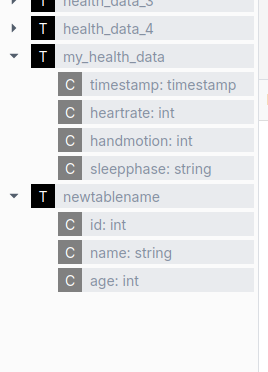 Un esempio di componente che utilizza anche il metastore è il Esplora tabelle Ilum.
Utilizza gli elementi di ottimizzazione di Spark
Spark SQL offre diverse funzionalità di ottimizzazione che possono migliorare significativamente le prestazioni delle query attraverso il partizionamento, clustering e formati di archiviazione appropriati. Queste tecniche di ottimizzazione aiutano Spark a elaborare le query in modo più efficiente, soprattutto quando si tratta di set di dati di grandi dimensioni, Riducendo al minimo la quantità di dati che devono essere scansionati e migliorando l'organizzazione dei dati su disco.
Nell'esempio seguente viene illustrata una definizione di tabella che incorpora diverse tecniche di ottimizzazione:
- Partizionamento della tabella in base al
datteroepaesecolonne, che consente a Spark di ignorare le partizioni irrilevanti - Clustering dei dati in base al
ID utentePer migliorare la localizzazione dei dati per le righe correlate - Ordinamento dei dati per
viewTimeper query di intervallo più efficienti - Organizzazione dei dati in bucket per una migliore distribuzione
- Utilizzando il pulsante
PARQUETottimizzato per l'archiviazione a colonne e l'esecuzione efficiente di query
CREARE TAVOLO page_view
(
    viewTime     INT,
    ID utente       BIGINTO,
    page_url STRINGA,
    referrer_url STRINGA,
    amici ARRAY<BIGINTO>,
    immobili MAPPA<CORDA, CORDA>,
    dt STRINGA,
    paese STRING
) COMMENTO "Questa è la tabella delle visualizzazioni di pagina"
PARTIZIONATO PRESSO(Dt, paese)
CLUSTER PRESSO(ID utente) ASSORTITO PRESSO(viewTime) IN 32 SECCHI
MEMORIZZATO COME PARQUET
Un effetto simile può essere ottenuto utilizzando le funzionalità fornite da formati di tabella alternativi, che sono discusso sotto
Usare le estensioni Spark SQL per aumentare le prestazioni delle query
Spark SQL consente di utilizzare varie estensioni SQL per migliorare la funzionalità SQL integrata.
Questo viene fatto tramite il spark.sql.extensions proprietà.
Ad esempio, è possibile aggiungere il Lago Delta , che fornisce funzionalità aggiuntive per l'uso delle tabelle Delta.
Tuttavia, questa proprietà può essere utilizzata anche per abilitare altre estensioni, ad esempio un'estensione di ottimizzazione SQL per i motori di esecuzione Spark. Per abilitarlo, è possibile effettuare una delle seguenti operazioni:
- Usa una delle immagini Ilum Spark più recenti
- Aggiungi il file JAR dell'estensione dal repository Maven:
org.apache.kyuubi:kyuubi-extension-spark-<SPARK_VERSION>_<SCALA_VERSION>:<KYUUBI_VERSION> - Modifica l'immagine del contenitore del tuo Spark e aggiungi il file JAR al percorso di classe
In questo modo è possibile aggiungere l'estensione al motore SQL come segue: spark.sql.extensions=org.apache.kyuubi.sql.KyuubiSparkSQLExtension.
Questa proprietà è un elenco di estensioni delimitate da virgole, quindi è possibile aggiungerne di più.
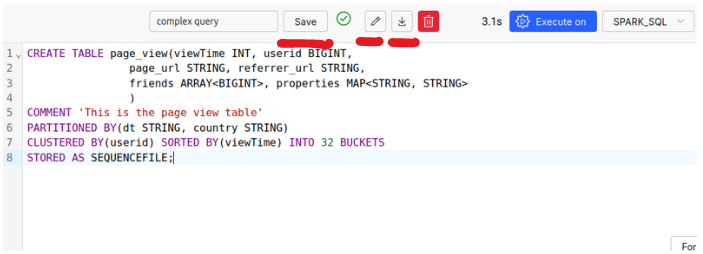
Salva query, importa ed esporta query SQL
The SQL Editor allows you to save your queries for later use, as well as import and export them.
Make use of More Advanced Data Formats: Apache Iceberg, Apache Hudi, and Delta Tables
Tabelle Delta
Delta Lake è un livello di archiviazione open source che porta le transazioni ACID su Apache Spark e Carichi di lavoro Big Data. Utilizza Tabelle Delta come formato principale, combinando Lime per parquet con Registri delle transazioni. Questi log tengono traccia delle versioni delle tabelle, acquisiscono le operazioni DML e Gestire la concorrenza con i blocchi.
In parole povere, ogni operazione su una partizione crea una nuova versione, conservando quella precedente per Facile rollback se necessario. Un file di registro delle transazioni consente a queste versioni di gestire il blocco e la versione garantendo la coerenza dei dati.
Delta Lake è semplice da usare e rappresenta una scelta eccellente per l'integrazione con l'aggiunta di funzionalità aggiuntive al tuo ambiente Ilum.
For more details on Delta Lake’s concurrency management with OCC (controllo della concorrenza ottimistica) e come integra lo streaming e le scritture batch, si consiglia di visitare il Documentazione Delta Lake.
Tratti somatici:
- Mantenimento delle proprietà ACID
- Supporto per operazioni di aggiornamento, eliminazione e unione
- Evoluzione dello schema: modifica delle tabelle
- versioning: possibilità di viaggio nel tempo alle versioni precedenti del dataset
- migliore ottimizzazione rispetto ai formati tradizionali
- Integrazione di queste funzionalità sia per lo streaming che per i batch
Come utilizzare le tabelle Delta?
By default, Delta Tables are enabled inside Ilum’s SQL Editor. The following configurations are set for you:
spark.sql.extensions=io.delta.sql.DeltaSparkSessionExtension
spark.sql.catalogo.scintilla_catalogo=org.apache.spark.sql.delta.catalog.DeltaCatalog
spark.databricks.delta.catalog.update.enabled=vero
Therefore, you can make use of Delta Tables inside your SQL Editor without any extra steps.
-
Creare una tabella Delta
CREARE TAVOLO my_health_data_delta
(
    Timestamp  TIMESTAMP,
    Frequenza cardiaca  INT,
    con movimento manuale INT,
    fase di sonno VARCHAR(20)
) UTILIZZANDO DELTA; -
Eseguire alcune operazioni DML
INSERIRE IN my_health_data_delta (Timestamp, Frequenza cardiaca, con movimento manuale, fase di sonno) VALORI
(GETTARE('2024-10-01 00:00:00' COME TIMESTAMP), 70, 1, 'Svegliatevi'),
(GETTARE('2024-10-01 01:00:00' COME TIMESTAMP), 68, 0, 'Luce'),
(GETTARE('2024-10-01 02:00:00' COME TIMESTAMP), 65, 0, 'profondo'),
(GETTARE('2024-10-01 03:00:00' COME TIMESTAMP), 64, 1, 'profondo'),
(GETTARE('2024-10-01 04:00:00' COME TIMESTAMP), 66, 0, 'Luce');
CANCELLARE DA my_health_data_delta
DOVE Timestamp = '2024-10-01 02:00:00';AGGIORNARE my_health_data_delta
METTERE Frequenza cardiaca = 50
DOVE Timestamp = '2024-10-01 03:00:00'; -
Guarda la cronologia delle versioni e i dettagli
DESCRIVERE STORIA my_health_data_delta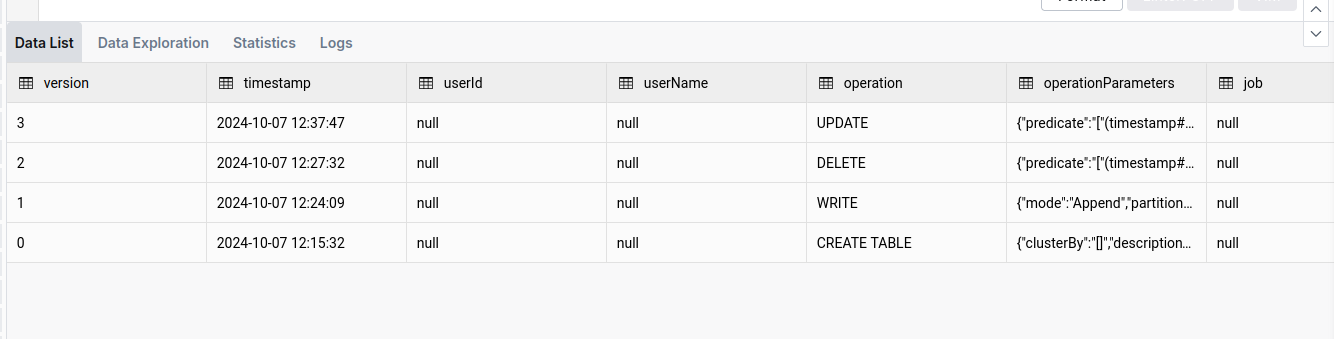
-
Utilizzare la funzionalità di viaggio temporale e della versione
SELEZIONARE *
DA my_health_data_delta VERSIONE COME DI 1
O per viaggiare verso una data specifica (ad esempio, un giorno di ritorno):
SELEZIONARE *
DA my_health_data_delta TIMESTAMP COME DI date_sub(current_date(), 1) -
Pulizia
Sebbene le tabelle Delta siano ottimizzate per le prestazioni, possono accumularsi un numero elevato di file nel tempo. Le
VUOTOL'operazione consente di ripulire questi file e ottimizzare la tabella. Puoi leggere a riguardo qui.VUOTO my_health_data_deltaO per vedere quali file verranno eliminati (fino a 1000):
ASPIRAZIONE my_health_data_delta FUNZIONAMENTO A SECCO
Apache Hudi
Sebbene Apache Hudi sia simile al Delta Lake, ha i suoi vantaggi unici. In Apache Hudi, ogni partizione è organizzata in Gruppi di file. Ogni gruppo di file è composto da Fette, che contengono file di dati e file di registro di accompagnamento. I file di registro registrano le azioni e i dati interessati, consentendo a Hudi di ottimizzare le operazioni di lettura Applicazione di queste azioni al file di base per produrre la visualizzazione più recente dei dati.
Per semplificare il processo, la configurazione Compattamento operazioni è essenziale. La compattazione crea una nuova sezione con un file di base aggiornato, migliorando le prestazioni.
This structure, along with Hudi’s extensive optimization, enhances write efficiency, making it faster than alternative formats in certain scenarios. Furthermore, Hudi supports NBCC (Controllo della concorrenza non bloccante) Invece di OCC (Optimistic Concurrency Control), che è più efficace in ambienti con Scritture simultanee elevate.
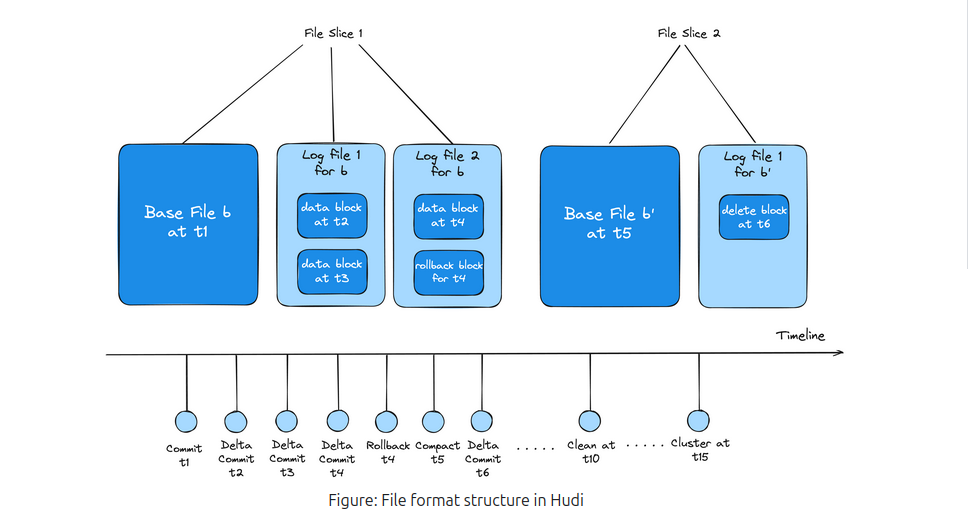
In sintesi, Apache Hudi è adatto per ambienti con operazioni di scrittura simultanee pesanti e offre un maggiore controllo sulle ottimizzazioni personalizzate, anche se potrebbe essere meno intuitivo rispetto a Delta Lake.
Per saperne di più, si consiglia di visitare Pagina della documentazione di Apache Hudi
Come usare Apache Hudi?
A differenza di Delta Lake, l'Apache Hudi non è preconfigurato; Pertanto, sarà necessario modificare la configurazione del cluster e aggiungere le seguenti proprietà:
{
  "spark.jars.packages": "org.apache.hudi:hudi-spark3.5-bundle_2.12:0.15.0",
  "spark.serializer": "org.apache.spark.serializer.KryoSerializer",
  "spark.sql.catalogo.scintilla": "org.apache.spark.sql.hudi.catalog.HoodieCatalog",
  "spark.sql.estensioni": "org.apache.spark.sql.hudi.HoodieSparkSessionExtension",
  "spark.kryo.registrator": "org.apache.spark.HoodieSparkKryoRegistrar"
}
Remember to make sure that the version of the Hudi-spark’s jar is matching the version of the Spark you are using.
Inoltre, poiché il pacchetto jar non è preinstallato, è possibile che si verifichi il problema dell'heap JVM Out Of Memory durante l'inizializzazione del motore. Per saperne di più su questo problema e su come risolverlo, fare riferimento alla Sezione Risoluzione dei problemi.
-
Creare una tabella Hudi
CREARE TAVOLO my_sales_data_hudi (
    sale_id STRINGA,
    sale_date TIMESTAMP,
    product_id STRINGA,
    quantità INT,
    prezzo DECIMALE(10, 2)
) UTILIZZANDO HUDI
TBLPROPRIETÀ (
    digitare = 'mor',
    chiave primaria = 'sale_id'
);
Si noti il
tipo = 'mor'proprietà, che sta per Unisci in lettura. Questa proprietà modifica il tipo di tabella, bilanciando l'ottimizzazione tra lettura e scrittura Operazioni. -
Esecuzione di operazioni DML
INSERIRE IN my_sales_data_hudi (sale_id, sale_date, product_id, quantità, prezzo) VALORI
('S001', GETTARE('2024-10-01 10:00:00' COME TIMESTAMP), 'P001', 10, 99.99),
('S002', GETTARE('2024-10-01 11:00:00' COME TIMESTAMP), 'P002', 5, 49.99),
('S003', GETTARE('2024-10-01 12:00:00' COME TIMESTAMP), 'P003', 20, 19.99),
('S004', GETTARE('2024-10-01 13:00:00' COME TIMESTAMP), 'P004', 15, 29.99),
('S005', GETTARE('2024-10-01 14:00:00' COME TIMESTAMP), 'P005', 8, 39.99);
AGGIORNARE my_sales_data_hudi
METTERE prezzo = 89.99
DOVE sale_id = 'S001';CANCELLARE DA my_sales_data_hudi
DOVE sale_id = 'S003'; -
Elenca i commit
CHIAMARE show_commits (tavolo => 'my_sales_data_hudi', limite => 5)
Si noti qui il
commit_time, che mostra l'ora del commit. Possiamo utilizzare questo valore per eseguire viaggi nel tempo. -
Utilizzare la funzionalità di viaggio nel tempo
CHIAMARE rollback_to_instant(tavolo => 'my_sales_data_hudi', instant_time => <commit-time-from-last-step>'');Questo comando ripristinerà la tabella allo stato in cui si trovava al momento del commit specificato. Tieni presente che puoi annullare solo l'ultimo commit, quindi se vuoi tornare indietro, È necessario eseguire più rollback.
Apache Iceberg
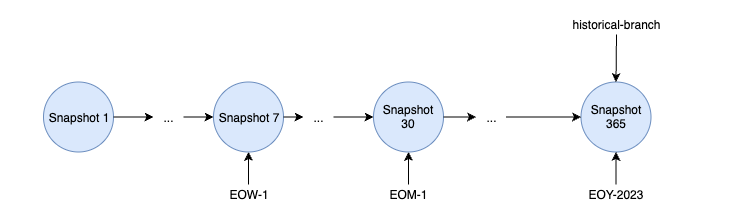
Apache Iceberg è un formato di tabella ad alte prestazioni progettato specificamente per i data lake, Offre funzionalità uniche rispetto ad altri formati. Costruito attorno a un'architettura distinta, Iceberg utilizza Istantanee per gestire gli stati delle tabelle, evitando di fare affidamento sui registri delle transazioni tradizionali. Questa progettazione basata su snapshot acquisisce l'intero stato di una tabella in momenti specifici.
Ogni snapshot contiene un Elenco manifesti, che a sua volta fa riferimento a più manifesti. Questi manifesti organizzano i puntatori a file di dati specifici e contengono i metadati pertinenti, consentendo a Iceberg di tenere traccia in modo efficiente delle modifiche senza duplicare i file di dati tra gli snapshot. Questo approccio ottimizza l'archiviazione, in quanto gli snapshot possono riutilizzare i file di dati esistenti, riducendo la ridondanza.
Iceberg offre anche potenti funzionalità come Diramazione e tagging, Consentendo agli utenti di creare rami di tabelle e assegnare tag leggibili agli snapshot. Queste funzionalità sono essenziali per il controllo della versione, Consentendo ai team di gestire gli aggiornamenti simultanei e testare le modifiche prima di eseguirne il commit in produzione.
Con opzioni flessibili di organizzazione dei dati e solide funzionalità di controllo delle versioni, Apache Iceberg consente una gestione dei dati scalabile e performante per i moderni data lake.
Ulteriori informazioni sulla documentazione di Apache Iceberg
Come usare Apache Iceberg?
A differenza di Delta Lake, l'Apache Hudi non è preconfigurato; Pertanto, sarà necessario modificare la configurazione del cluster e aggiungere le seguenti proprietà:
{
  "spark.jars.packages": "org.apache.iceberg:iceberg-spark-runtime-3.5_2.12:1.6.1",
  "spark.sql.estensioni": "org.apache.iceberg.spark.extensions.IcebergSparkSessionExtensions",
  "spark.sql.catalogo.scintilla": "org.apache.iceberg.spark.SparkSessionCatalog",
  "spark.sql.catalog.spark_catalog.type": "alveare",
  "spark.sql.catalog.spark_catalog.uri": "thrift://ilum-hive-metastore:9083"
}
Remember to make sure that the version of the Iceberg’s jar is matching the version of the Spark you are using and that the Hive Metastore is available at the specified URI.
Inoltre, poiché il pacchetto jar non è preinstallato, è possibile che si verifichi il problema dell'heap JVM Out Of Memory durante l'inizializzazione del motore. Per saperne di più su questo problema e su come risolverlo, fare riferimento alla Sezione Risoluzione dei problemi.
-
Crea una tabella Iceberg:
CREARE TAVOLO weather_stations
(
    station_id STRINGA,
    reading_time TIMESTAMP,
    temperatura DECIMALE(4,1),
    umidità INT,
    wind_speed DECIMALE(4,1)
) UTILIZZANDO iceberg -
Inserire dati nella tabella
INSERIRE IN weather_stations VALORI
('WS001', GETTARE('2024-03-01 08:00:00' COME TIMESTAMP), 15.5, 65, 12.3),
('WS001', GETTARE('2024-03-01 09:00:00' COME TIMESTAMP), 17.2, 62, 10.5),
('WS001', GETTARE('2024-03-01 10:00:00' COME TIMESTAMP), 19.8, 58, 11.7),
('WS002', GETTARE('2024-03-01 08:00:00' COME TIMESTAMP), 14.2, 70, 8.9),
('WS002', GETTARE('2024-03-01 09:00:00' COME TIMESTAMP), 16.0, 68, 9.2),
('WS002', GETTARE('2024-03-01 10:00:00' COME TIMESTAMP), 18.5, 63, 10.1),
('WS003', GETTARE('2024-03-01 08:00:00' COME TIMESTAMP), 13.7, 72, 15.4),
('WS003', GETTARE('2024-03-01 09:00:00' COME TIMESTAMP), 15.9, 69, 14.8),
('WS003', GETTARE('2024-03-01 10:00:00' COME TIMESTAMP), 18.1, 65, 13.2); -
Creare un tag dallo snapshot corrente
ALTERARE TAVOLO weather_stations CREARE CARTELLINO `initial_state` -
Apporta alcune modifiche ai dati
AGGIORNARE weather_stations
METTERE
  temperatura = 16.5
DOVE
  station_id = 'WS001'
  E reading_time = GETTARE('2024-03-01 08:00:00' COME TIMESTAMP)
CANCELLARE DA weather_stations DOVE station_id = 'WS002' -
Elenca tutte le istantanee
SELEZIONARE * DA spark_catalog.default.weather_stations.Istantanee
Salva il timestamp (
commited_at) dell'istantanea a cui si desidera viaggiare nel tempo per un secondo momento. -
Scopri la cronologia
SELEZIONARE * DA spark_catalog.default.weather_stations.storia -
Rollback a un tag specifico
CHIAMARE spark_catalog.sistema.set_current_snapshot (
  tavolo => 'spark_catalog.default.weather_stations',
  Ref => 'initial_state'
) -
Viaggio nel tempo verso un'istantanea specifica
SELEZIONARE * DA weather_stations TIMESTAMP COME DI <Timestamp-Da-passo-5>
How to use UDFs in the SQL Editor?
UDFs (User Defined Functions) are a powerful feature in SQL that allows you to define custom functions to use in your queries. They are also supported in the SQL Editor, allowing you to extend the functionality of your queries.
-
Creare una classe per la tua UDF
pacco example

importazione org.apache.hadoop.alveare.ql.exec.UDF

classe ScalaUDF extends UDF {
  def evaluate(str: String): Int = {
    str.length()
  }
}
Assicurati di includere la dipendenza necessaria di
hive-exec:3.1.3nel tuo progetto:<dipendenza>
<groupId>org.apache.hive</groupId>
<artifactId>alveare-exec</artifactId>
<Versione>3.1.3</Versione>
</dipendenza> -
Crea un pacchetto jar e inseriscilo nel tuo storage distribuito

Assicurati di ricordare il percorso del tuo file jar.
-
Add it to the SQL Editor spark session
AGGIUNGERE BARATTOLO <the-path-to-your-jar-file>'' -
Creare una funzione, collegata alla FDU definita dall'utente
CREARE
O SOSTITUIRE FUNZIONE ScalaUDF come 'esempio. ScalaUDF' -
Utilizzarlo in una query
SELEZIONARE nome, ScalaUDF(nome)
DA nuovonometabella
Risoluzione dei problemi
It is useful to know that when executing SQL queries from the SQL Editor page, the SQL execution engines are visible as normal Ilum Jobs. This means that you can monitor their state, check logs and statistics, just like any other job in the "Jobs" tab.
Heap JVM insufficiente durante l'invio di scintille
If in engine’s launch logs, you find an error like this:
Eccezione nel thread "main" io.fabric8.kubernetes.client.KubernetesClientException: spazio heap Java
    all'indirizzo io.fabric8.kubernetes.client.dsl.internal.OperationSupport.waitForResult (OperationSupport.java:520)
    all'indirizzo io.fabric8.kubernetes.client.dsl.internal. OperationSupport.handleResponse(OperationSupport.java:535)
    ...
    all'indirizzo org.apache.spark.deploy.SparkSubmit$.main(SparkSubmit.scala:1129)
    all'indirizzo org.apache.spark.deploy.SparkSubmit.main(SparkSubmit.scala)
Causato da: java.lang.OutOfMemoryError: Spazio heap Java
    ...
It is likely caused by the default JVM heap size of Ilum’s internal spark-submit being too small for your task.
Per risolvere questo problema, puoi passare al Invio di Spark esterno. This way, the spark submit process will not be constrained to Ilum’s pod resources.